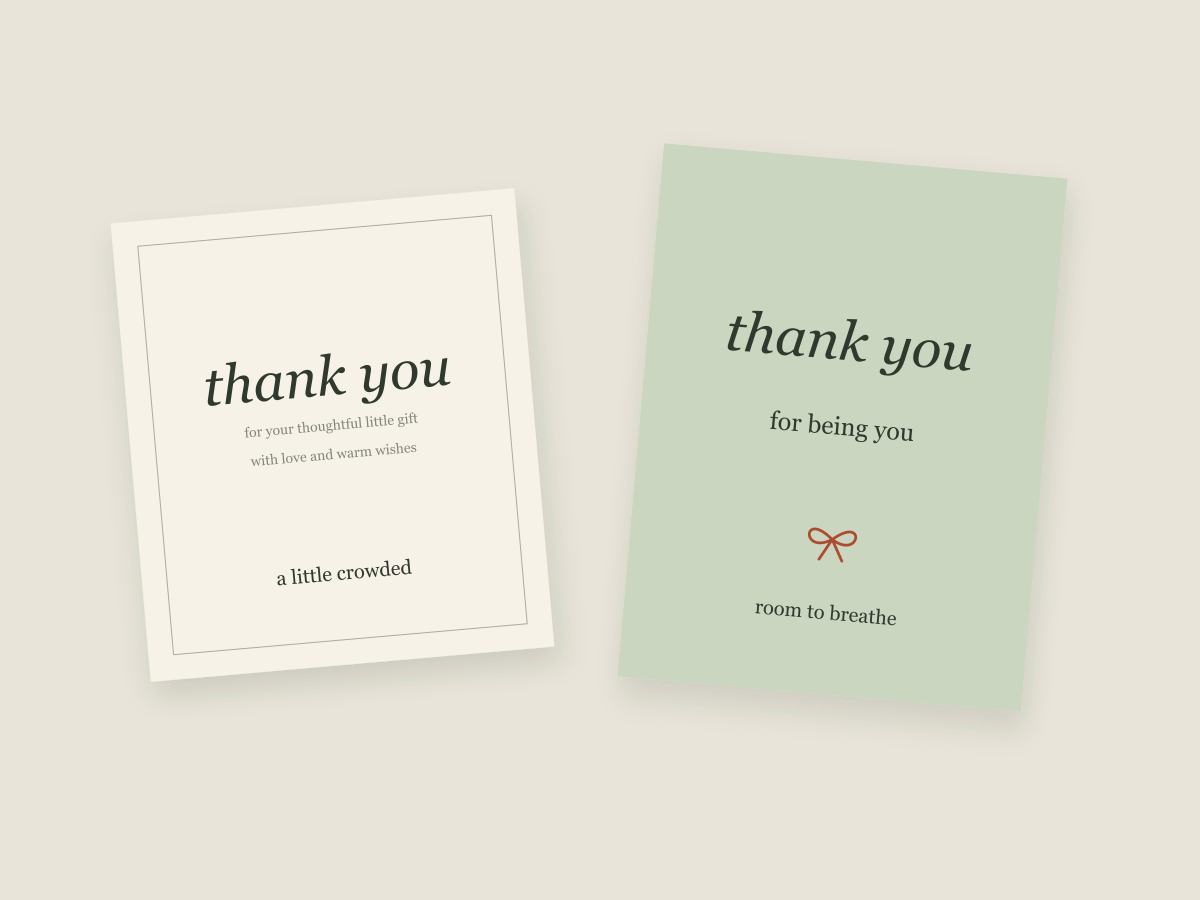
The name looks lovely. The little message underneath it has become almost invisible. This is an easy place to arrive when you design a small object on a large screen.
An enlarged view makes details look comfortable. A useful review asks how much information you are trying to fit, what needs attention first and what can be removed.
This is a digital design checklist, not a physical print test or a formal accessibility assessment. Screens, readers and printers differ, and those differences matter.
Review the complete message
Do not assess a typeface using one attractive word. Add the real greeting, date, punctuation and recipient name. A design may feel balanced with “For you” and become crowded with a longer message.
Check characters that are easy to overlook: apostrophes, numerals, accented letters and similar-looking letterforms. If your actual text does not fit the intended font, choose a different option or change the layout rather than hiding the problem.
Keep the comparison consistent
Compare candidate layouts on the same page dimensions, with the same text and similar viewing conditions. Otherwise a larger preview can make one option appear easier to read simply because it is larger.
A PDF viewer’s “100%” setting does not guarantee a physical inch on every display. Use it as one consistent inspection setting, not proof that the screen matches the eventual object exactly.
Zooming in is still useful. It can reveal clipped glyphs, unexpected overlap and export artifacts. It just answers a different question from physical readability.
Try three simpler changes
- Remove a competing detail. A heavy frame or decorative line may be taking space away from the message.
- Shorten the supporting copy. A tag does not have to carry the whole story. Keep the wording meaningful and brief.
- Use a calmer supporting typeface. Let the name be expressive while the smaller information stays straightforward.
These changes often make the hierarchy more obvious without turning every line into a headline. Look at our typography guide for a few ways to separate the jobs.
Check the exported version
Reopen the actual file you intend to share. The editable source and the exported result are not always identical. Check that the font appearance is preserved, no line has wrapped unexpectedly and no part of a letter has been clipped.
Look at contrast as well as size. A pale message on a pale background can be difficult even when the lettering is relatively large. Decorative textures behind small words may also add noise.
Know what the screen cannot tell you
Digital inspection cannot establish how ink, paper, lighting or a physical finish will affect the final object. If you need a printed result, make a sample on the actual setup before treating the design as finished.
Use our original file-check checklist to record the digital checks you have completed and the physical ones still outstanding. Being clear about that boundary is part of making a useful design.
Keep the useful part. Make the rest your own.
How we prepare our digital guides