A botanical card does not need a wreath, bouquet and border at the same time. One branch in a corner can be enough. Start with your message, set its space, then choose artwork that leaves that space comfortable to read.
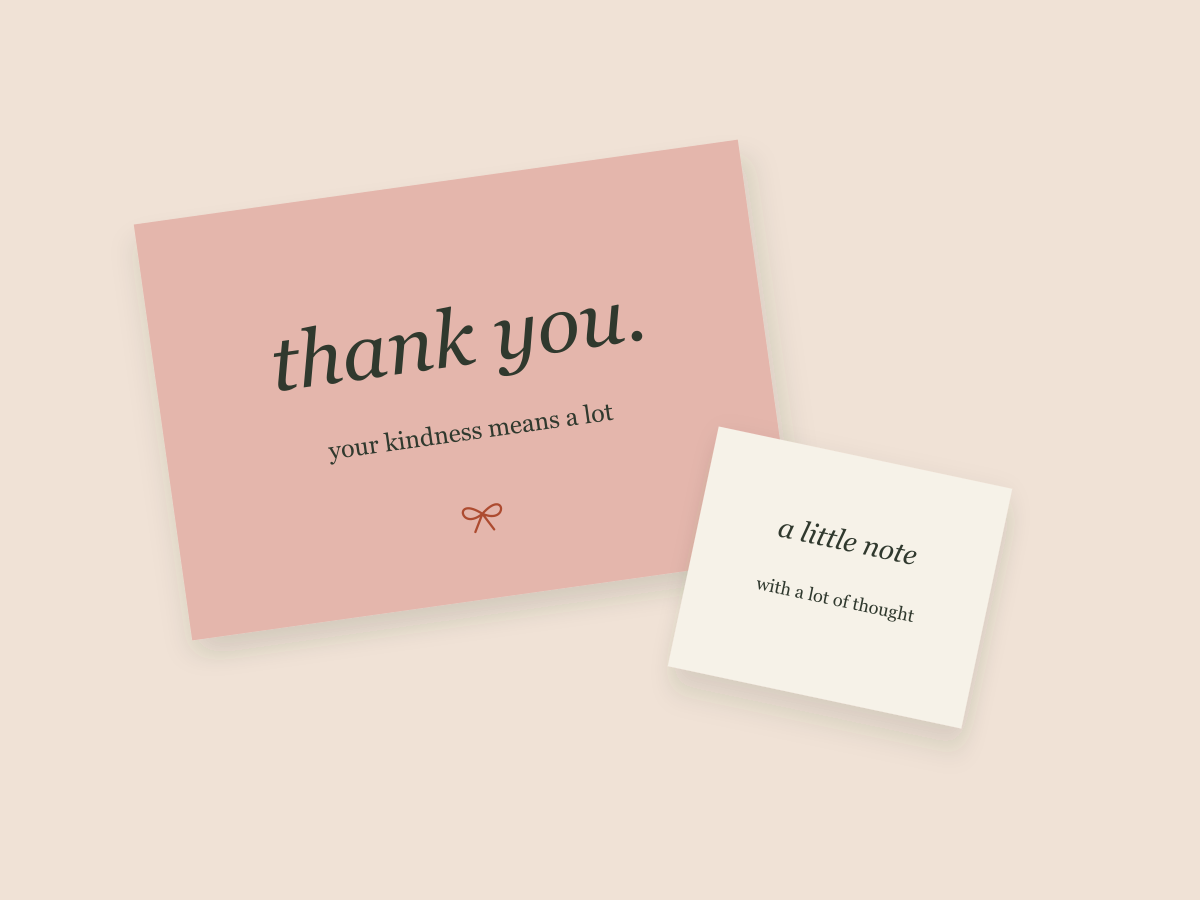
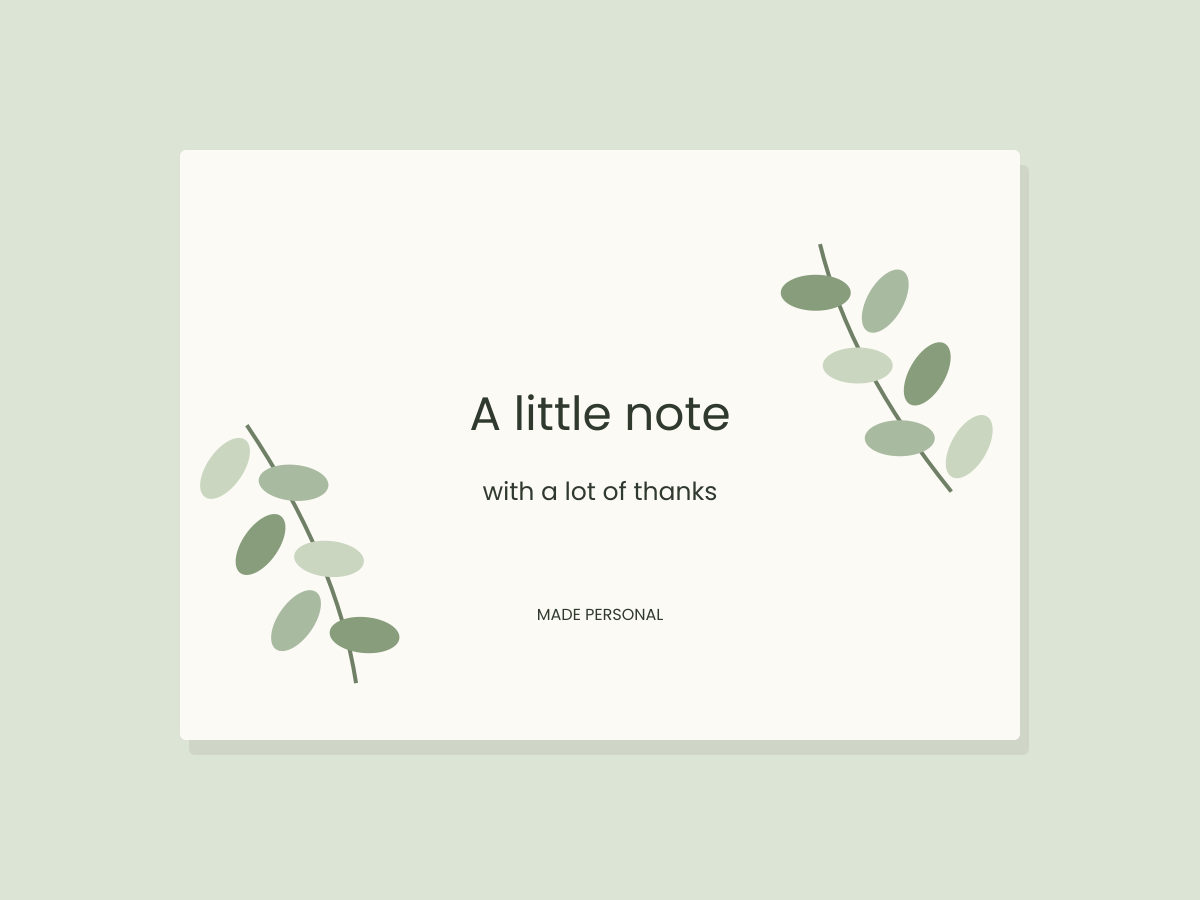
This guide explains a digital layout workflow. Our cover contains original drawn leaves; it is not a sample of the Creative Fabrica collection linked below. We have not downloaded that collection or tested a physical print.
Choose artwork for the available space
For a thank-you card, put the main words near the center and try greenery in one lower corner. For a wedding detail card with several lines of information, a narrow side accent usually competes less with the text than a large central wreath. For a short personal greeting, a frame can work if its opening is large enough for your actual wording.
Draw an empty text rectangle first. Place a temporary shape where the artwork would go. If the composition already feels crowded before you add detailed leaves, simplify the arrangement. You do not need to buy a bigger bundle to solve a spacing problem.
Check pixels rather than trusting the DPI label
A PNG is a pixel image. Its useful size depends on its pixel dimensions and how large you place it. A “300 DPI” description does not make a small image infinitely scalable.
Use this planning calculation:
Pixels across ÷ width in inches = pixels per inch at that placed size
A 900-pixel-wide element placed three inches wide gives 300 pixels per inch. Placed six inches wide, the same element gives 150. This is arithmetic for planning a layout, not a guarantee of print quality. Fine watercolor texture, paper, output settings and the print provider also matter.
| Example image width | Placed width | Result |
|---|---|---|
| 900 pixels | 3 inches | 300 pixels per inch |
| 900 pixels | 6 inches | 150 pixels per inch |
| 1,500 pixels | 5 inches | 300 pixels per inch |
These are hypothetical dimensions, not specifications for the products below. Check the actual element you want before you rely on this calculation.
Inspect transparency on two backgrounds
Place the image over white, then over a medium sage or gray rectangle. This reveals a solid background that might be hard to notice on a white product preview. Look for a box around the image, light fringes at the leaf edges and details that disappear against a colored card.
Do not assume every PNG is transparent. PNG supports transparency, but an individual file can still have an opaque background. If the file is flattened, avoid spending time trying to recover details that were never separated from that background.
Keep the colored test rectangle only for inspection unless it belongs in your final design. Reopen the exported file and check the edges again; a correct editable view does not prove every export setting is right.
Build a calm hierarchy
Try a five-by-three-and-a-half-inch landscape canvas as a starting example. Add a short heading, a sentence of thanks and a business name. Reserve a clear margin around the text before introducing greenery.
Use one botanical element at first. Rotate or move it to support the corner instead of pushing it behind every word. If you repeat an element, compare the silhouettes so the result does not look like the same leaf stamped at even intervals.
Dark green text on cream can form a quiet palette, but check contrast at the actual reading size. Delicate pale lettering may be attractive at a large preview size and difficult to read when reduced. See our small-text guide for a closer inspection routine.
Export for the destination
Keep an editable original. For an online card, export at the pixel dimensions required by its destination. For a physical card, ask the print provider about page dimensions, bleed, color handling and PDF requirements before preparing the final file. Screen colors are not a promise of matching ink colors.
If the artwork is supplied in RGB, do not label the design “print ready” just because you exported a PDF. Let the provider’s instructions determine the next step. Physical output still needs a sample.
Keep the source artwork separate
An illustration license and permission to distribute a new editable template are different questions. Keep your source files private and consult the terms attached to the actual purchase or subscription download. Do not put the original PNG collection into a public download folder.
The eucalyptus listing below is an artwork route. The thank-you template is a layout route. Start with whichever part of your project is missing; you do not automatically need both. For wording that gives the greenery a useful purpose, continue with small-business thank-you cards.
Files to explore for this project
Affiliate links: if you purchase through these links, we may earn a commission. How this works
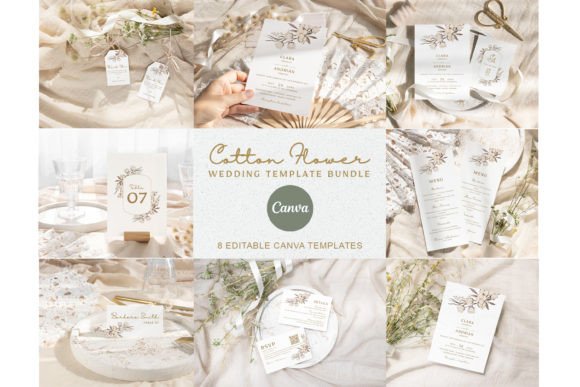
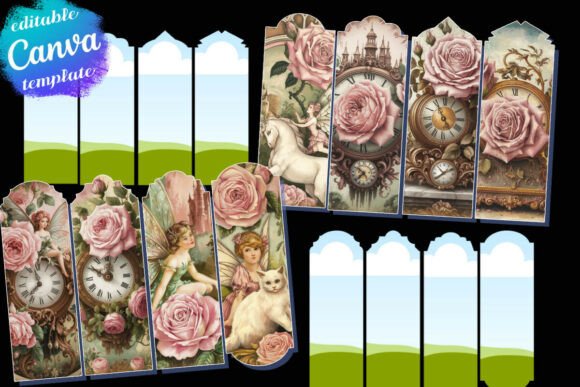
Selected from the creators’ listing descriptions, checked October 22–23, 2026. We have not downloaded or hands-on tested these products. Product images below are previews from the creators’ listings. They may show physical styling props; the linked products are digital downloads. Check current access terms and the license on Creative Fabrica.
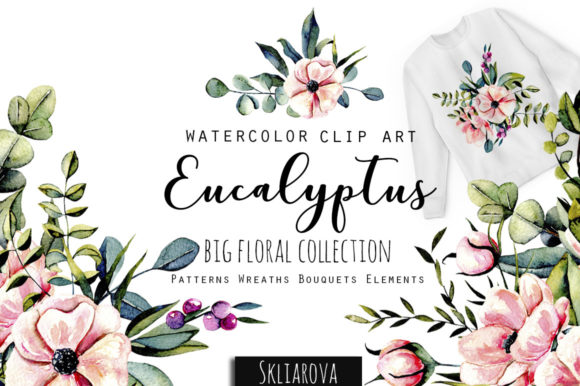
An evergreen visual direction
Eucalyptus Collection
By HappyWatercolorShop · Creative Fabrica
Greenery artwork to explore for understated cards, wedding details and botanical favor tags.
The listing presents a botanical collection with PNG elements and arrangements.
File & software checks
Check actual pixel dimensions, transparency and included arrangements. Artwork needs a layout editor; it is not a ready-to-edit Canva card.
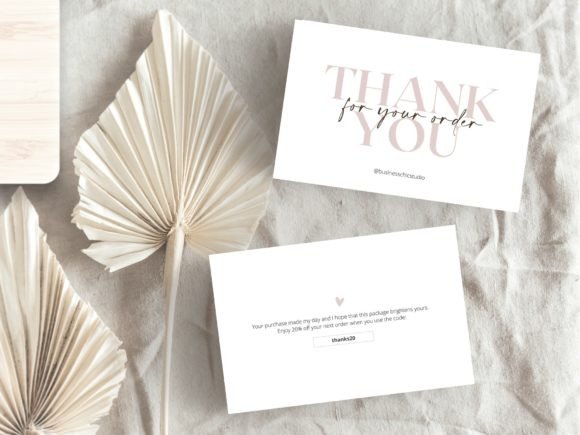
Neutral small-business stationery
Minimalist Thank You Card Template
By Business Chic Studio · Creative Fabrica
A soft beige-and-white card for thanking customers, adding a short personal note or sharing your next-order offer.
One horizontal 6 × 4 inch Canva template with a two-page design. The listing describes editing the wording and text colors, with PDF, PNG or JPG export.
File & software checks
Confirm template access and any paid elements in your Canva account. Replace example offers and business details with your own; exact printed colors need a sample.
Keep the useful part. Make the rest your own.
How we prepare our digital guides